
Company-managed spaces
Add field
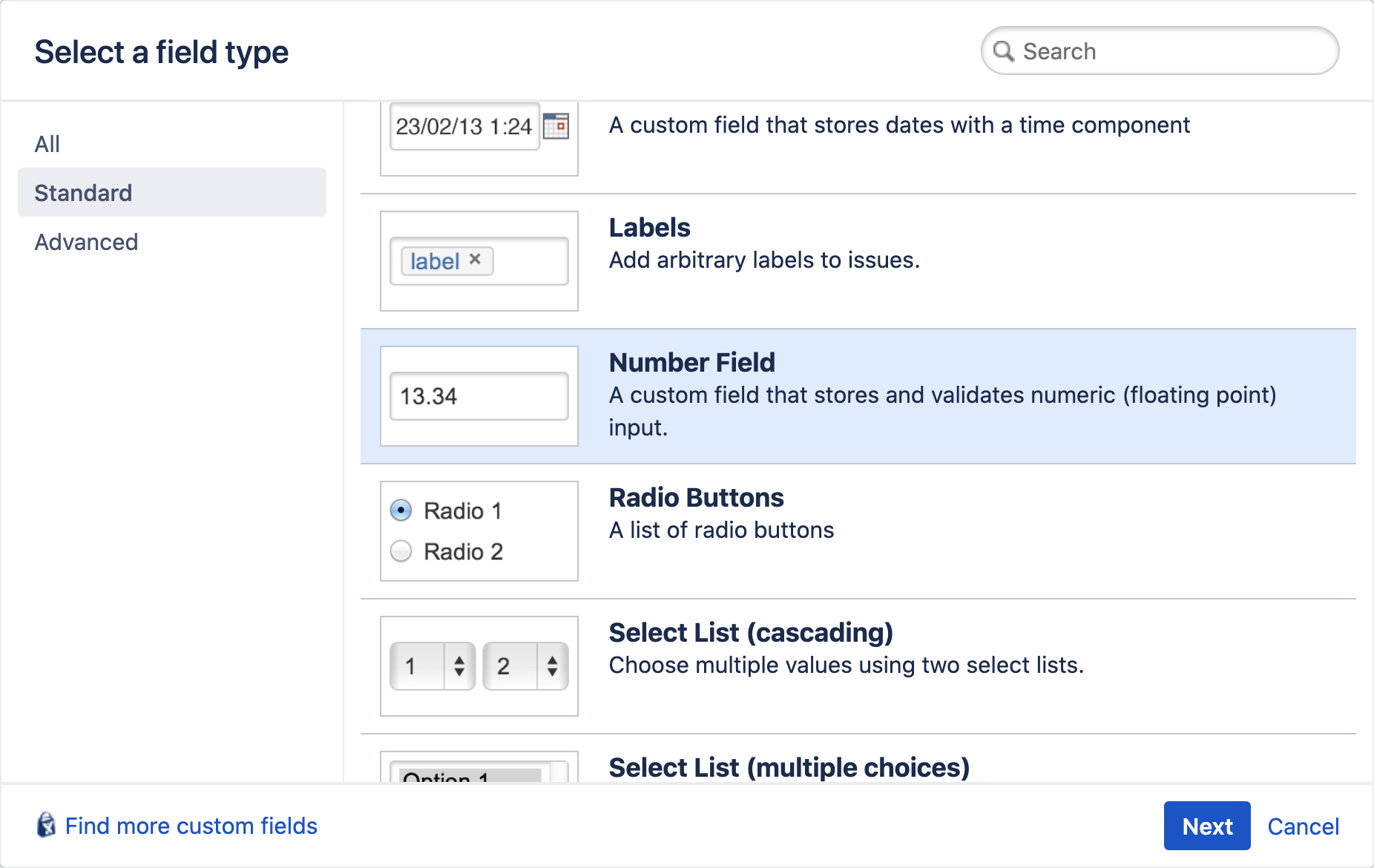
To set a budget for any progress bar you need to create the custom field you want to use first.
For time budgets the (ESU) Time field needs to be used. This way you can differentiate between time formats (e.g. 8h 30m or 3d 2h 15m).
For numerical budgets you can use the Number Field.
Once the field is created, add it to the necessary screens.
Assign as budget
In the Summary Panel configuration navigate to the related progress bar and set the field as budget in the drop down menu. Depending on your configuration set up you can do this globally, per work type or on a space basis.

Add value
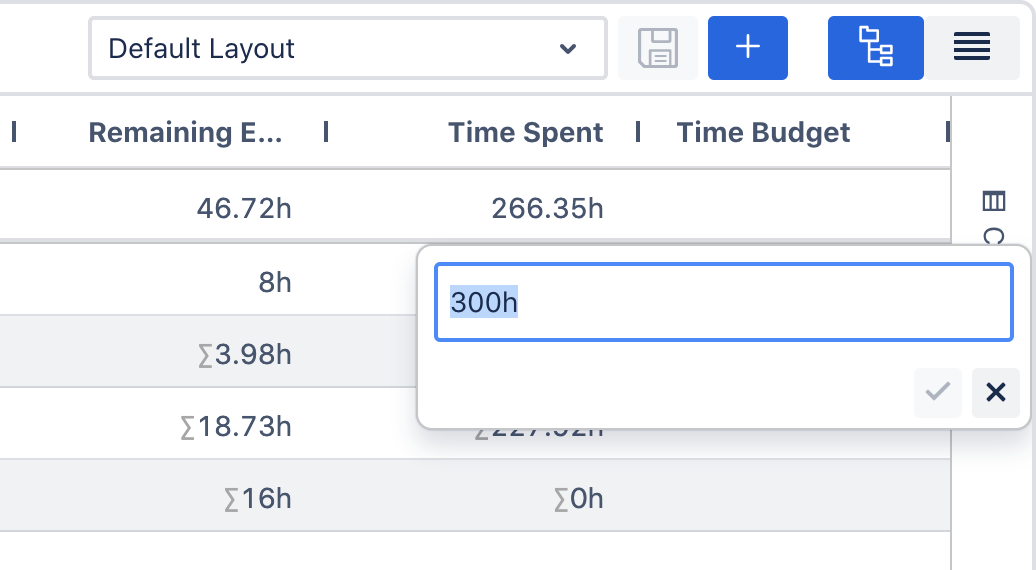
In order for the budget to appear on the progress bar, you need to add a value to the field. You can do this in the work item view or Worksheet.
Team-managed spaces
Add field
To set a budget for any progress bar you need to add the field you want to use to the space first. For that navigate to Space settings > Fields in your team-managed space. Here you can see the fields that can already be used in this space and add new ones.
For time budgets the (ESU) Time field is used. This is a custom field type provided by ESU that can only be used to create custom fields in the global work item configuration.
If you already have a global (ESU) Time custom field in your instance to use in your company-managed spaces, you can find it in this list.
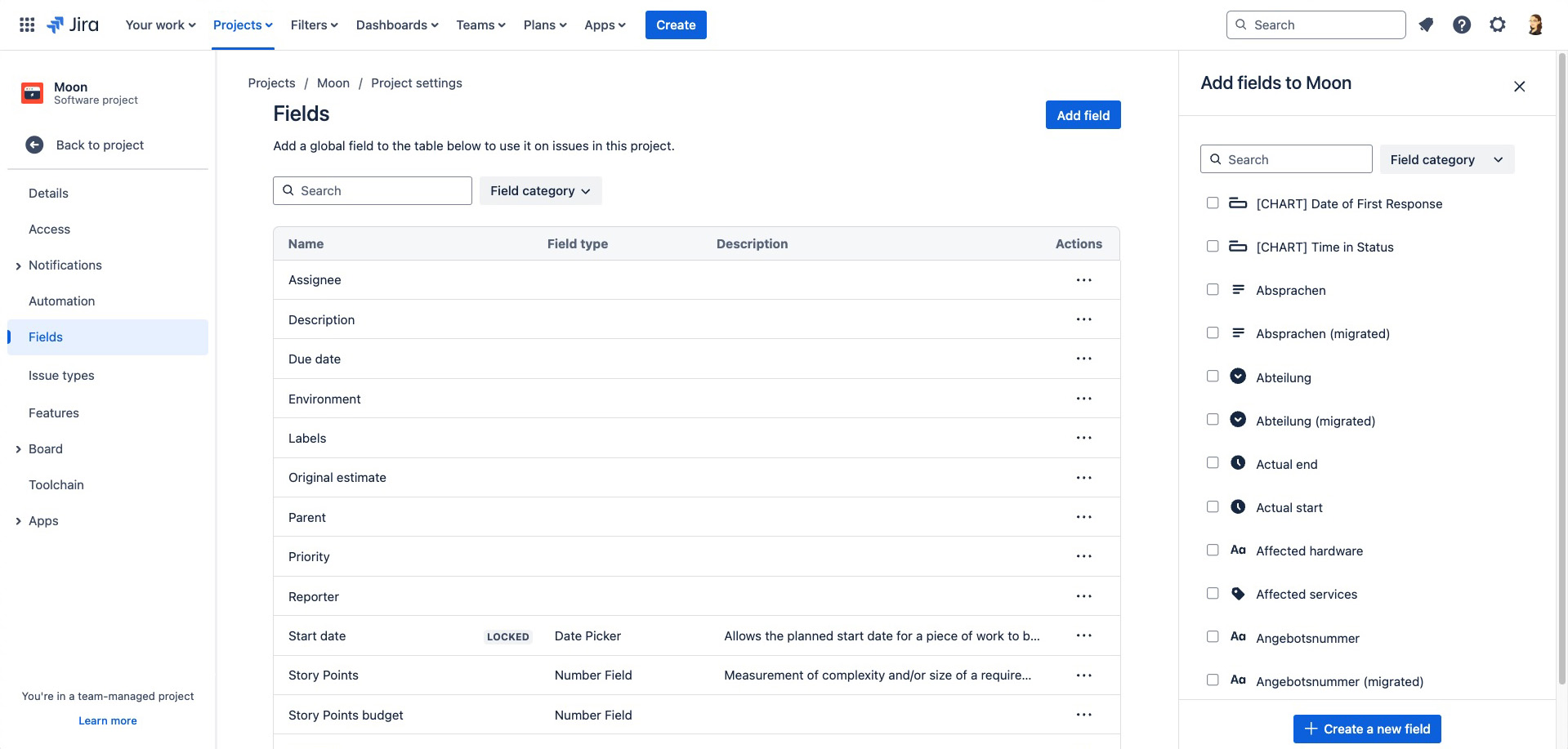
If no budget field is available, please contact your administrator to create one for you or create your own Short Text field as a placeholder.
For numerical budgets like story points you need to create a new Number field.
After you have added/created the fields, navigate to Space settings > Work types and add the fields to every work type that should have a budget.
Assign as budget
In the Summary Panel space configuration navigate to the related progress bar and set the field as budget in the drop down menu.
Please note that you need to switch on the customizable space configuration first.
Add value
In order for the budget to appear on the progress bar, you need to add a value to the field first. You can do this in the work item view or Worksheet.