
What is the ESU timesheet?
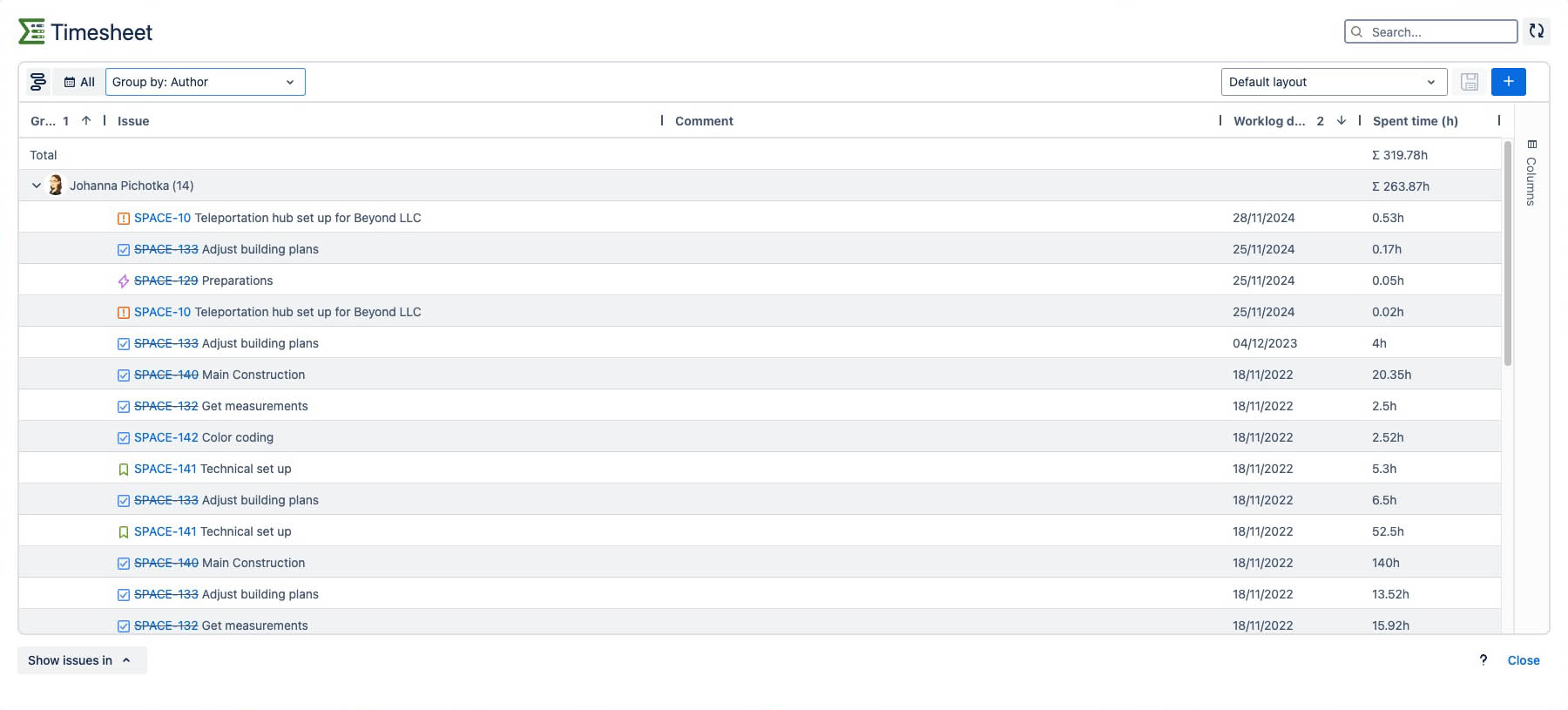
The timesheet is a useful feature that ESU offers. With ESU, you can quickly and easily generate timesheets that will show you how long each team member spent on each work items.
What is the value of the timesheet?
Once you create a timesheet, ESU allows you to create a worklog report.
This report will be very useful for managers to assess the performance of individual team members, with different sorting and grouping options, to give you the best view of the data. This data is also useful in assessing how your project is going overall.
Example use cases
If you are a project manager, you may wish to structure your worklog report in specific ways. For example, if you want to view the worklogs of only the software developers on your team, you could select to view the data for those individuals.
How to access the ESU timesheet
-
From the Worksheet use the “Show Work items In” button, in the bottom left corner.
-
Click the “Show Work items In” button at the bottom of the Summary Panel.
Timesheet features
-
Quickly view worklogs - view your worklogs in an work items hierarchy, in one view, without having to filter
-
Group your worklogs - by default, worklogs are grouped by work items. However, they can also be grouped by author or date.
-
Select a specific date-range - create your worklog reports from a calendar. Alternatively, you can use one of the preset options, such as the last month, which are available.
-
Search for specific data - in the search bar
-
Filter for specific individuals - look up individuals on your team, to view their worklog data
-
Time aggregation - View a summary of all times, filter as needed
-
Add additional columns - Customize your worklog report
-
Save layouts - Create personalized reporting views
-
Export data - to CSV and Excel
How to create a worklog report
1.Open timesheet
Within ESU, go to the Summary Panel on the right hand side of the screen. At the bottom of the Summary Panel, click on the share icon and choose timesheet from the menu to open it up.
2.Select the date-range of your sheet
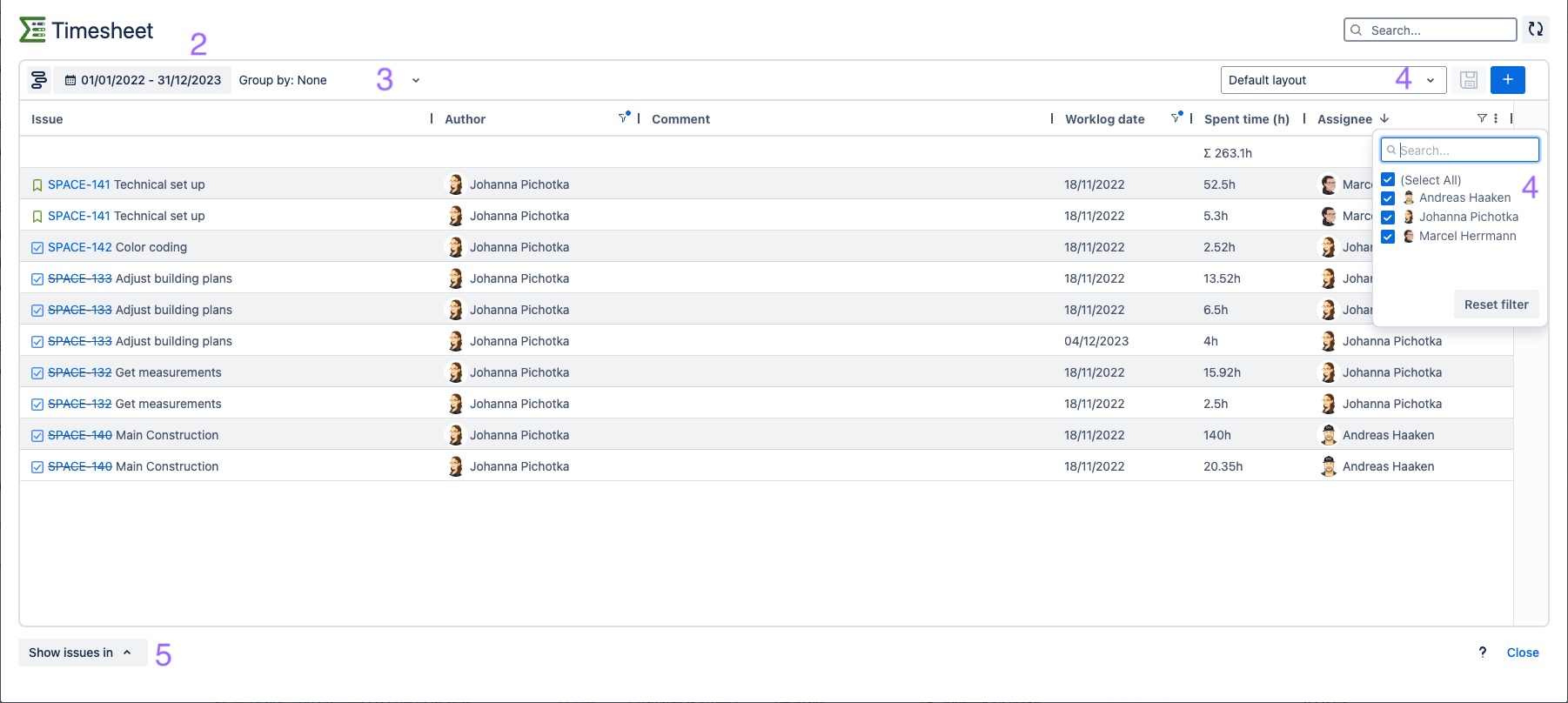
After you have opened the timesheet in ESU, navigate to the calendar All icon. Clicking on this icon will open up a calendar view, from which you can select the date-range of your choice. Alternatively you can select one of the available Presets.
3.Filter your worklogs to display the information that you wish to report on.
In the upper left portion of the screen in your worklog report, you will see a Group By dropdown menu. Click on this, and you will see a menu of options which include: Work items, Author, and Worklog Date.
4.Sort and filter the report using worklog columns of your choice
You also have the option to sort and filter worklog report data using columns. These columns include: Work items, Author, Comment, Working date, and Spent Time (h). You can also add additional columns if necessary or select a predefined layout.
Within the filter menu for e.g. the Author you can select, or deselect certain team members - this is useful if you want to sort your worklog report to only include specific roles within your team. In order for this menu to appear on the column header, you need to set the grouping option to Group by: None.
Now you have all the information you need for your report.
5.Export your report
To export your report data, navigate to the bottom left corner of your timesheet. You will see a Show Work items In menu button. Click on the button, and a drop down menu will appear - here you will see options to export your report to Excel or CSV format.